
Automated Web Form Testing Without Rewriting the Same Flow
Record a form interaction once, replace fixed values with variables, and run the same Playwright flow against multiple valid, invalid, and boundary test cases.
Every case produces its own result, screenshots, error details, step history, and Playwright trace.
One Successful Submission Does Not Mean the Form Works
A form can accept one valid email and still fail when:
- a required field is empty;
- the email contains an invalid format;
- a value reaches its minimum or maximum length;
- two fields contain a conflicting combination;
- an error message does not disappear after correction;
- the submit action returns the wrong confirmation or URL;
- the layout changes on a mobile viewport.
The difficult part is not recording the happy path. It is running the same path with enough meaningful variations without maintaining a separate browser test for every value.
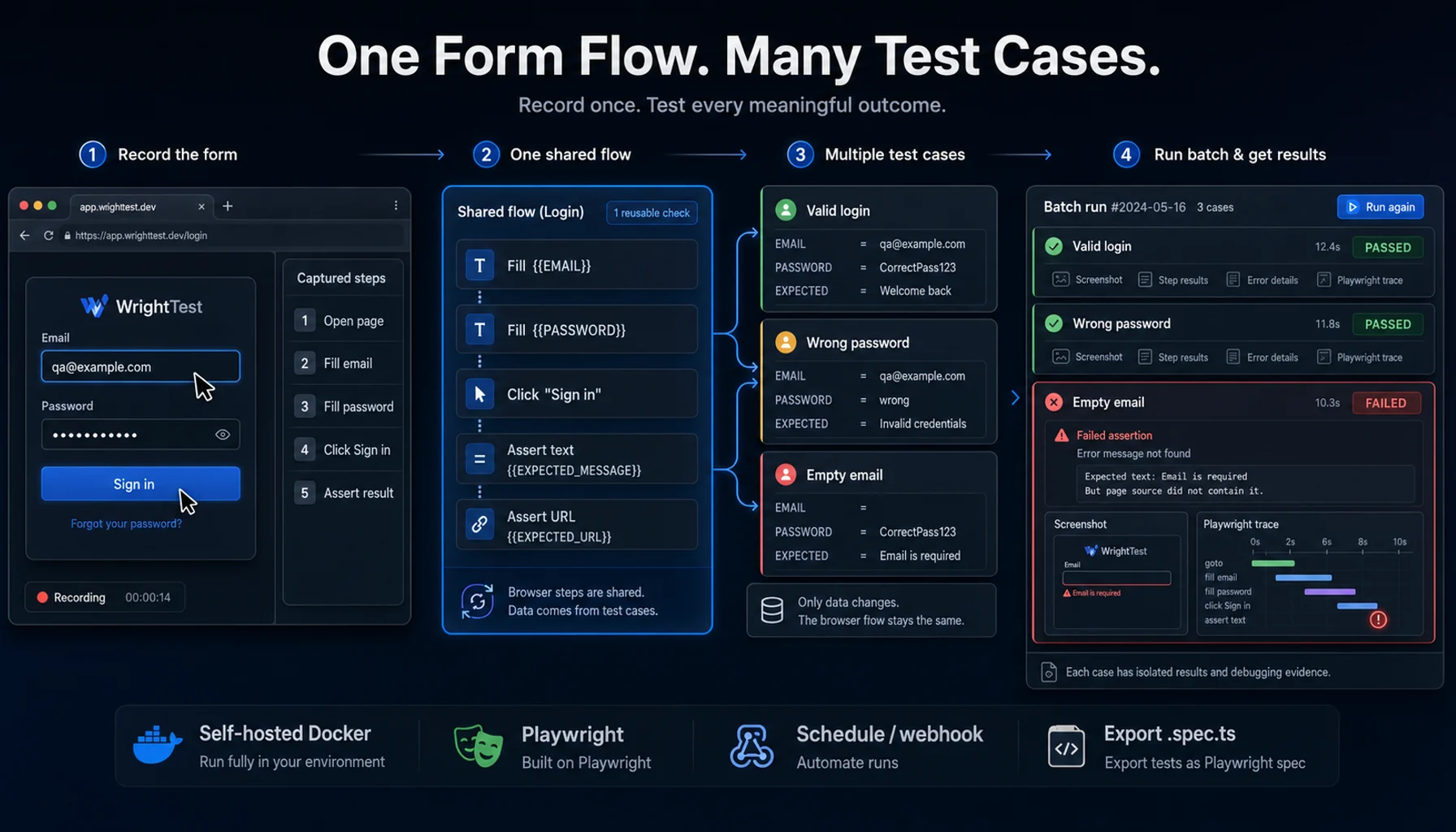
WrightTest separates the browser flow from the test data.
One Browser Flow, Multiple Form Scenarios
- Check
- One reusable browser scenario containing the start URL, device, recorded steps, locators, and assertions.
- Test case
- One named set of input values and expected results for that check.
- Run
- One execution of the check with one selected test case.
- Run batch
- A grouped execution of all enabled test cases belonging to the check.
The clicks, field locators, navigation steps, and assertions remain shared. Only the scenario variables and expected outcomes change.

Change the Data, Not the Browser Steps
A duplicated suite often contains several scripts with the same actions:
- open the form;
- fill the email;
- fill the password;
- click Sign in;
- verify the result.
The only differences are usually the values and the expected response. In WrightTest, the shared steps can use variables.
Fill {{EMAIL}}
Fill {{PASSWORD}}
Click "Sign in"
Assert text {{EXPECTED_MESSAGE}}
Assert URL {{EXPECTED_URL}}| Case | PASSWORD | EXPECTED_MESSAGE | EXPECTED_URL | |
|---|---|---|---|---|
| Valid login | [email protected] | CorrectPass123 | Welcome back | https://example.com/dashboard |
| Wrong password | [email protected] | wrong | Invalid email or password | https://example.com/login |
| Empty email | CorrectPass123 | Email is required | https://example.com/login |
Empty strings are valid values, so required-field scenarios do not need a separate browser flow.

What a Useful Form Test Should Verify
Do not test every possible value. Select cases that change the expected behavior or can reveal a distinct failure.
| Testing layer | What to verify | Example |
|---|---|---|
| Valid input | The form accepts supported data | A correctly formatted email is submitted |
| Invalid input | The form rejects malformed data | An email without a domain shows an error |
| Empty input | Required-field behavior | Submit with EMAIL= |
| Boundary value | Minimum and maximum constraints | Test values immediately below, at, and above the limit |
| Conditional logic | Fields react to another selection | Company name becomes required for a business account |
| Error recovery | The form recovers after correction | Replace an invalid email with a valid one |
| Submission outcome | The visible result is correct | A success message or expected redirect appears |
| Device layout | The flow remains usable at another viewport | The submit button remains accessible on a mobile preset |
Adding ten values that exercise the same validation rule increases maintenance but does not necessarily increase useful coverage.
Build a Form Check in Four Steps
-
1. Record the real browser flow
Open the form in WrightTest's live browser and complete the interaction as a user would. The recorder captures clicks, field input, selections, and navigation. Prefer user-facing locators such as roles and labels over layout-dependent CSS paths.
-
2. Add assertions
A recorded interaction only proves that the actions were executed. Add assertions for the outcome that matters:
- an error message is visible;
- a field contains the expected value;
- a checkbox is selected;
- a confirmation heading appears;
- the browser reaches the expected URL;
- the expected number of elements is present.
-
3. Replace fixed values with variables
Move scenario-specific values out of the shared steps:
{{EMAIL}}
{{PASSWORD}}
{{EXPECTED_MESSAGE}}
{{EXPECTED_URL}}
Environment variables can hold shared configuration such as
{{BASE_URL}}. Test-case variables can provide values for the selected scenario. -
4. Run all enabled cases
Run one selected case while editing, or queue all enabled cases as a batch. WrightTest creates a separate run for each case instead of collapsing the entire batch into one result.
Debug the Failed Case, Not the Entire Batch
A useful batch result must answer more than "something failed." For every case, WrightTest can retain:
- the case name;
- the variables used for the run;
- pass or fail status;
- step-by-step results;
- screenshots;
- execution error;
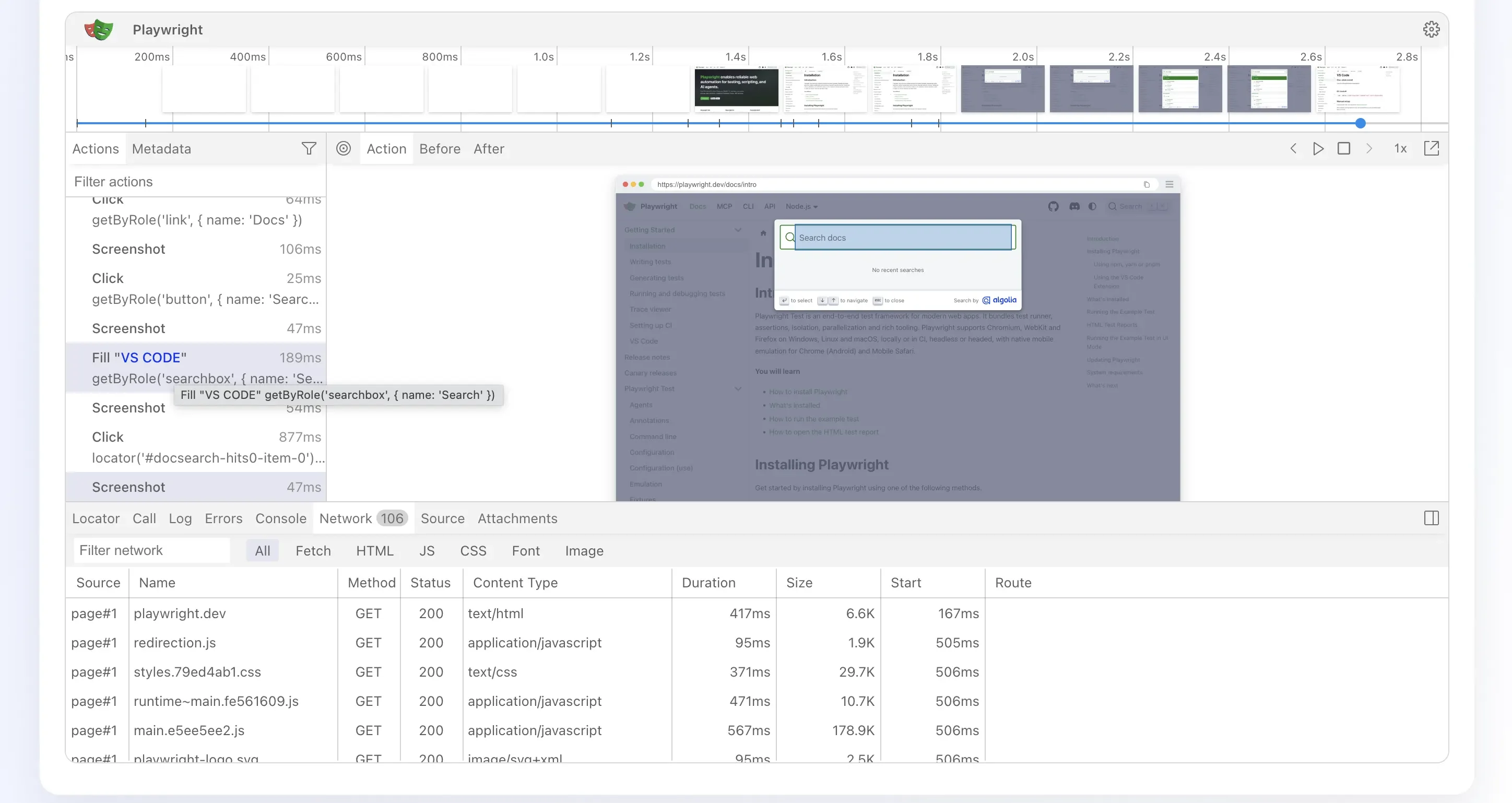
- Playwright trace.
An empty-email case can fail because the validation message did not appear. A valid-login case can fail later because the redirect was wrong. They use the same browser flow but represent different defects and should remain separate in the report.
Use the Right Testing Layer
A browser check is strongest when the question is about visible user-facing behavior. Other questions belong to other testing layers.
| Question | Useful layer |
|---|---|
| Did the user-facing form accept or reject the expected input? | WrightTest browser check |
| Did the expected message appear? | WrightTest text assertion |
| Did the browser reach the expected page? | WrightTest URL assertion |
| Was the correct record stored in the database? | API, integration, or database test |
| Was a notification delivered to a CRM or mailbox? | Integration test or external-system verification |
| Is the form vulnerable to XSS or SQL injection? | Security scanner or penetration test |
| Can real users understand the labels and workflow? | Usability testing |
| Does the flow work on physical mobile devices? | Real-device testing |
| Is it accessible to screen-reader users? | Accessibility tooling and manual assistive-technology testing |
Where Data-Driven Form Checks Fit Best
WrightTest is useful when the same browser interaction must be repeated with different inputs:
- login and authentication forms;
- registration and onboarding;
- contact and lead forms;
- search and filter forms;
- field validation rules;
- password reset;
- profile editing;
- support requests;
- internal admin workflows;
- repeatable multi-step browser journeys.
Complex file uploads, drag-and-drop interactions, canvas controls, unpredictable real-time behavior, deep backend validation, and security testing may require additional tooling or another testing layer.
Run on Demand, on a Schedule, or After Deployment
Form checks can be:
- started manually from the web interface;
- grouped into suites;
- run on a cron schedule;
- triggered through a webhook;
- exported as a native .spec.ts file;
- exported as a runnable Playwright project.
The exported test is not locked to WrightTest. It can run with standard Playwright tooling in an existing development or CI workflow.
Self-Hosted Form Testing
WrightTest can run in Docker with its web interface, browser worker, PostgreSQL database, Redis queue, and browser recording environment.
Your checks, variables, screenshots, and traces remain in infrastructure controlled by your team.
git clone https://github.com/AlexFilippov-it/wrighttest.git
cd wrighttest
cp .env.example .env
docker compose up --buildWhat WrightTest Does Not Do
Does WrightTest generate form test cases automatically?
No. You define the meaningful cases and expected outcomes. WrightTest reuses the recorded flow and executes those cases consistently.
Does a passing check prove that data reached the database?
No. It proves only the visible browser behavior covered by the configured steps and assertions. Database correctness requires an integration, API, or database-level check.
Is WrightTest a vulnerability scanner?
No. Use a dedicated security scanner or penetration-testing process for injection flaws and other security vulnerabilities.
Does device emulation equal physical-device testing?
No. Device presets reproduce selected browser and viewport characteristics, but they do not replace testing on physical hardware.
Test More Cases Without Maintaining More Flows
Record the interaction once, keep the browser steps shared, and add only the data variations that can change the outcome.